Spotify Canvas Size, Length and Specs (2026): Upload Without Errors
Spotify Canvas specs: 3–8 seconds, 9:16 vertical, 720–1080 px tall, MP4 or JPG. How to upload it, fix upload errors and why it isn't showing.
On this page
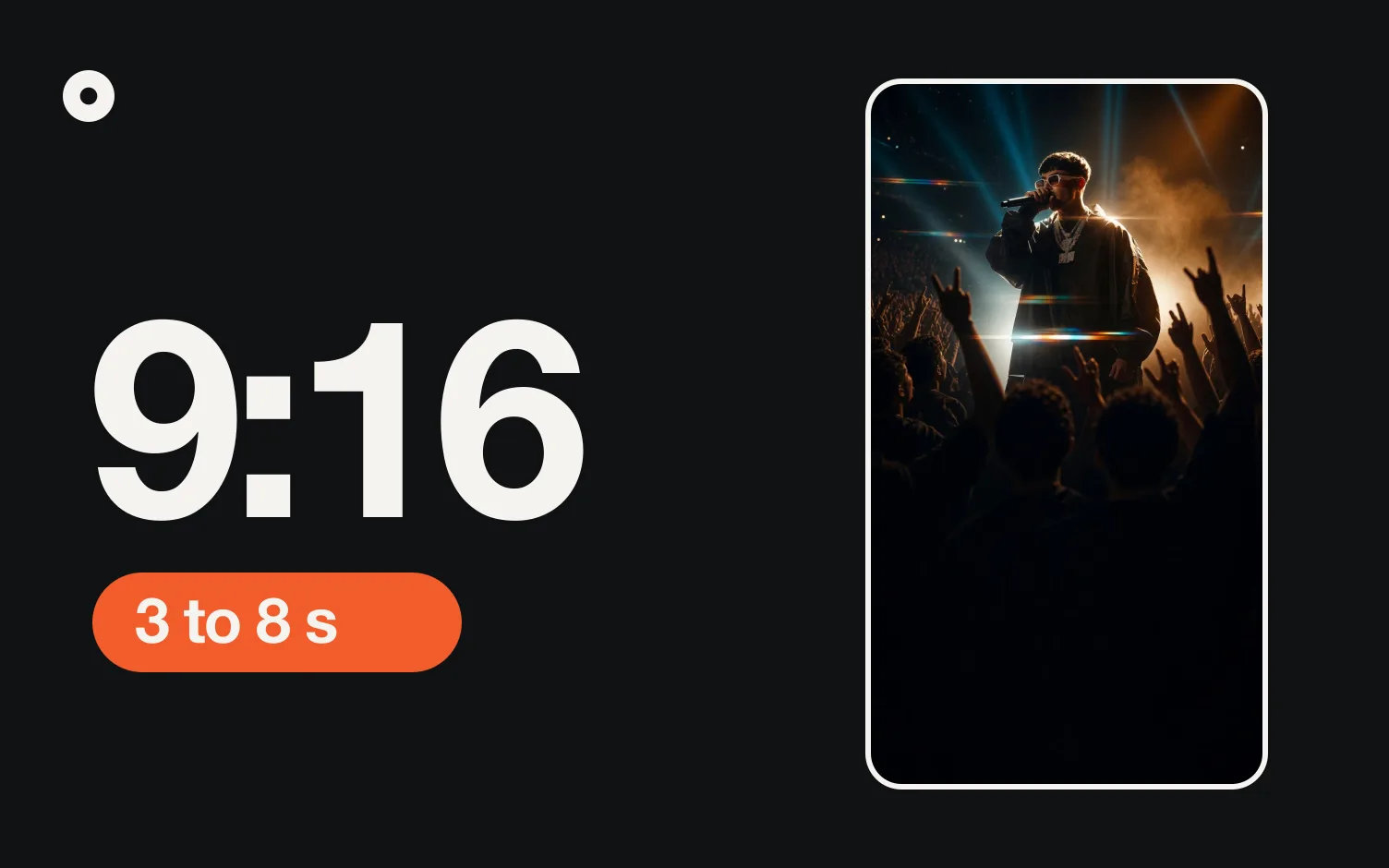
A Spotify Canvas must be 3 to 8 seconds long, vertical in a 9:16 ratio, between 720 and 1080 pixels tall, and saved as an MP4 or JPG. If the length or size is even slightly off, Spotify says the upload can fail (Spotify for Artists).
Canvas is the short looping visual that replaces your cover art in the Now Playing view of the Spotify mobile app (Adding a Canvas).
Spotify Canvas specs at a glance
Checked October 21, 2026.
| Spec | Requirement | Source |
|---|---|---|
| Length | 3–8 seconds | Canvas guidelines |
| Aspect ratio | 9:16, vertical | Canvas guidelines |
| Height | 720–1080 px | Canvas guidelines |
| File type | MP4 (video) or JPG (still image) | Canvas guidelines |
| Audio | Not in the spec. Spotify doesn't say whether it strips or ignores an audio track, so export the MP4 with no audio track to be safe | Canvas guidelines |
| File size limit | Spotify doesn't publish one | Fix a Canvas upload error |
| Where it plays | Spotify mobile app only (iOS 12+, Android 6.0+) | Canvas not showing |
Exact pixel sizes that fit the rules
Spotify's wording is "between 720px - 1080px tall" (Canvas guidelines). Read as the height, 9:16 gives these sizes:
| Width × height | Notes |
|---|---|
| 608 × 1080 | 9:16 at exactly 1080 px tall (width rounded to an even number) |
| 405 × 720 | 9:16 at the 720 px minimum height |
The exports most phones and editors make are 1080 × 1920 and 720 × 1280. Both are 9:16, but 1920 and 1280 px tall, so they sit outside that wording, and Spotify doesn't clarify whether it means the width. Some artists report uploading 1080×1920 files without trouble (Spotify Community thread). The safest choice is a 9:16 export that stays within 720–1080 px tall, such as 608×1080; if a bigger one gets rejected, re-export at that size.
You can check a file before you upload it. The checker below reads its length, ratio, height and type right there in your browser; nothing is uploaded.
Check your Canvas file
Drop an MP4 or JPG. It's read on your phone or computer; nothing is uploaded.
How to add a Canvas on Spotify
You need Spotify for Artists access with an Admin or Editor role, and you must be the first main artist on the track, or a main artist on both the track and the release (Adding a Canvas). You can add a Canvas to any track, including upcoming releases.
On desktop:
- Log in to artists.spotify.com.
- Go to Music and select the track.
- Click Add Canvas and upload the file.
On the Spotify for Artists mobile app:
- Tap Music and select the track.
- Tap Canvas.
If you release through DistroKid or another distributor: you still upload the Canvas in Spotify for Artists, not in the distributor's upload form. What the distributor gives you is the Spotify for Artists access. DistroKid, CD Baby, TuneCore, Amuse and others are on Spotify's list of providers that offer instant Spotify for Artists access (Spotify Provider Directory). On DistroKid, you get that access from distrokid.com/spotify once your music is live (DistroKid Help Center). The pre-save page DistroKid makes for the same release is a separate thing; here's how to find it.
Canvas upload error: what to check
Spotify's own checklist for a failed upload (Fix a Canvas upload error):
- The clip is between 3 and 8 seconds. A clip of 8.03 seconds counts as off; trim to 7.9.
- The ratio is exactly 9:16. A 1080×1900 crop is not 9:16.
- The height is between 720 and 1080 px.
- The file is MP4 or JPG. A MOV from an iPhone, a GIF or a PNG needs converting first.
- If it still fails on the web, try the Spotify for Artists mobile app, or reinstall it to get the latest version.
To check length and size before uploading, open the file's info on your computer (on Mac: Finder, then Get Info; on Windows: Properties, then Details) or the export screen of your video editor.
Why your Spotify Canvas is not showing
Spotify lists four causes (Canvas not showing in the Spotify app):
- Device. Canvas plays only in the mobile app, on iOS 12 or later or Android 6.0 or later. It does not show on desktop.
- Settings. In the Spotify app, go to Settings and privacy. Under Data-saving and offline, turn Data Saver off. Under Content and display, turn Canvas on.
- Ownership. For labels with split rights, Canvas only appears on the versions you own.
- Country. Canvas is available to listeners in a listed set of countries. The list includes the United States, Canada, Mexico, the UK, most of the EU, Brazil, Argentina, Colombia, Japan, South Korea, Australia and others. Check the full table on Spotify's page if your fans are elsewhere.
Does Canvas actually help?
Spotify reported in 2019 that "adding a high-quality Canvas to a track has increased streams by up to 120% and saves by up to 114%" (Spotify for Artists, Canvas metrics guide, October 10, 2019). That is Spotify's own figure, an upper bound, and seven years old. Spotify itself says the impact varies.
You can measure your own result. Spotify counts a Canvas view when someone opens the Now Playing view and sees it, at most one view per stream, so a song can show more Canvas views than streams (How we count Canvas views). Stats are recorded in UTC.
What makes a Canvas work
From Spotify's guidelines (Canvas guidelines):
- Skip footage of you talking, singing or rapping. A 3–8 second loop won't sync with the lyrics (at 120 BPM that's one and a half to four bars; the song length calculator has the math).
- Avoid fast cuts and intense flashing.
- Keep important details away from the edges; some phones crop them.
- Leave out the song and artist name. The Now Playing view already shows both.
- Pick a loop type: a seamless continuous loop, a hard cut with a clear edit point, or a rebound that plays forward and then in reverse.
- Match it to your cover art and profile images, and swap it over time. The cover has its own rules: see album cover size.
What gets a Canvas removed (Canvas content policy): URLs, ticket links, asks to follow on social media, promotion of other songs, brands (including Spotify's logo), discounts or contests. Mark it explicit if it shows profanity, violence, drug use, sexual content or other sensitive topics.
Where does Loud fit?
Nowhere near your Canvas: it lives in Spotify for Artists, and Spotify's policy keeps links and follow prompts out of it. What a Canvas can't do is send a listener somewhere you control. We make Loud, which builds your website and link in bio from your music and makes a page for every release, with the listen buttons and a sign-up for your fan list. Before release day that page shows your distributor's pre-save link if you paste it. See what a release page needs, how Spotify pre-saves work and the music release checklist, with the week your Canvas should be ready.
FAQ
What size is a Spotify Canvas?
Vertical 9:16, between 720 and 1080 px tall, 3 to 8 seconds, MP4 or JPG (Spotify).
How long can a Spotify Canvas be?
Between 3 and 8 seconds.
Can a Spotify Canvas be a photo?
Yes. Spotify accepts a JPG as well as an MP4.
Why can't I see my Canvas on desktop?
Canvas plays only in the Spotify mobile app.
Who can upload a Canvas?
The first main artist on the track, or a main artist on both the track and the release, with an Admin or Editor role in Spotify for Artists.
Can I add a Canvas before release day?
Yes. Spotify says you can add one to upcoming releases.