DistroKid Pre-Save Link: How to Get It, Share It and See Who Saved (2026)
Start collecting pre-saves the minute your upload is done: how to find your DistroKid pre-save link (HyperFollow), edit it, add a pixel and see who saved.
On this page
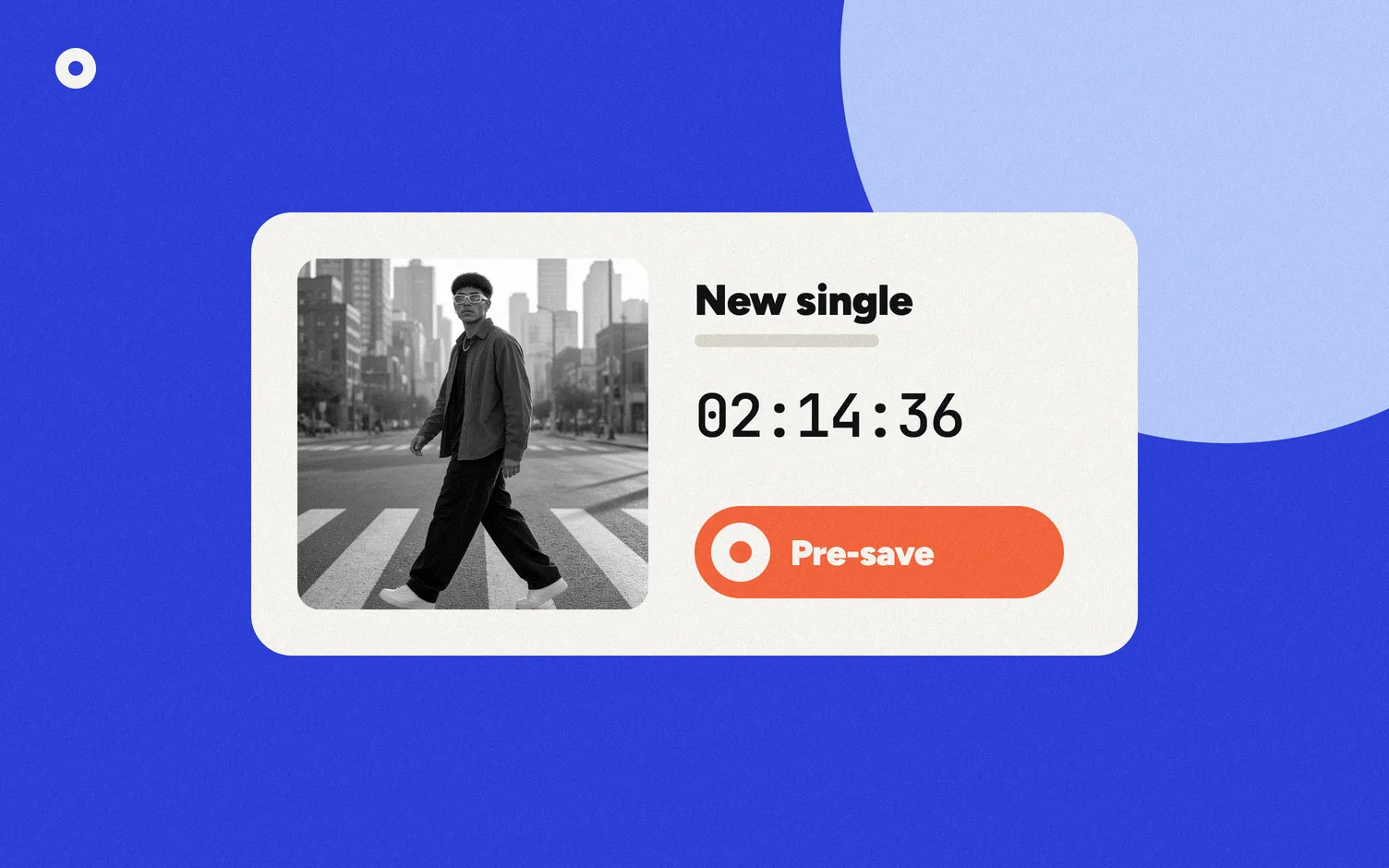
DistroKid makes a free pre-save page, called HyperFollow, for every release you upload. You'll find the link on your release's album page in DistroKid, or in the Features menu at the top right under Promote yourself, according to DistroKid Help. Share it before release day; when the song goes live, the page adds links to the other streaming services on its own.
How to get your DistroKid pre-save link
1. Upload your release
DistroKid says a HyperFollow page is created for every upload, and you can start collecting pre-saves as soon as you finish uploading (DistroKid Help). Once the release is in Spotify for Artists you can also give the track a Canvas; see the Spotify Canvas size and specs. The same album page lists the ISRC DistroKid gave each track; here's what an ISRC is and when you reuse it.
2. Copy the link
Open the release's album page in DistroKid and copy the HyperFollow link. Or open the Features menu (top right), then Promote yourself.
3. Share it
Put it in your bio link, stories and emails. DistroKid says the link never changes, so you don't need to update posts after release day.
What does a fan get when they pre-save?
Per DistroKid, anyone who taps the pre-save button follows you on Spotify and gets the release saved to their Spotify library. When the release goes live, the page updates with links to the other services.
What can you see about the people who pre-saved?
DistroKid lists, on its HyperFollow page:
- How many people visited your page and how many followers you added.
- City-level location and other anonymized information about your fans.
- Other music your fans listen to.
- Each fan's email address, on the Musician Plus and Ultimate plans only.
To see it, go to your HyperFollow dashboard (distrokid.com/hyperfollow) and click presaves next to the views of a page. There you'll see the email addresses of people who pre-saved, if they chose to share them (DistroKid Help).
How do you edit your HyperFollow page?
From the dashboard, click Edit under the page. Or, on a page made for one of your uploads, click Customize at the top right and then Edit this page. You can change the artist name, title and release date, add or reorder links (even to services DistroKid doesn't deliver to), and add social buttons, an audio player and a YouTube video (DistroKid Help).
How do you add a Meta or Google pixel?
A pixel is a small piece of code from Meta or Google that tells your ads who visited the page. DistroKid's steps (DistroKid Help):
1. Open your page signed in
Sign in to DistroKid and visit your HyperFollow page.
2. Open the settings
Click Customize, then Edit this page, and scroll to More settings.
3. Add your pixel IDs
Click + Ad-tracking pixels, enter your Meta and/or Google pixel IDs, click Done, then Save Changes.
With a Meta pixel you also get custom events, such as one when someone taps the Spotify pre-save and one when the pre-save succeeds.
What should you do with the link after release day?
The HyperFollow page keeps working as a listen page, with links to every service. If you want one link in your bio that stays right release after release, you can point it to a page that changes on its own instead.
That's what we make. In Loud, once your upcoming release shows up on your Home page, you paste your HyperFollow link there. It becomes the main Pre-save button on your website, your link in bio and the song's page. On release day the song's buttons take its place, and a page for it is already made. Read more on what a release page needs.
Where Loud loses here: HyperFollow is free for DistroKid users and has pre-saves, pixels and fan data. Loud doesn't create pre-saves, doesn't add ad pixels and doesn't sell anything. Use both: HyperFollow for the campaign, Loud for the pages that stay.
If you have fan emails in a file, Loud's Fans page can import a CSV, and asks you to confirm those people gave you permission to email them. Then you can write to them by city.
Related: how Spotify pre-saves work, the music release checklist and what to put in your Instagram bio link.
FAQ
Does DistroKid have a pre-save link?
Yes. DistroKid makes a free HyperFollow page for every upload that collects Spotify pre-saves before release day.
Where do I find my HyperFollow link?
On your release's album page in DistroKid, or in the Features menu under Promote yourself.
Can I see the emails of people who pre-saved?
DistroKid shows them in the HyperFollow dashboard, for fans who chose to share them, and says email addresses are for the Musician Plus and Ultimate plans only.
Can I add a Facebook pixel to HyperFollow?
Yes. Customize, Edit this page, More settings, then + Ad-tracking pixels, according to DistroKid.
Can I use my HyperFollow link on Loud?
Yes. Paste it on your Loud Home page for the upcoming release, and it becomes the Pre-save button on your site, link in bio and song page.